
The Screen & Prospect tools in WealthEngine have limitations based on the use of credits in the platform. This guide will break down how that applies for each tool and introduce you to the ways your Account Admins can check, track, and allocate credits in Manage Account.
- Note: If you are one of the few WealthEngine clients that have transitioned to an unlimited model, this article does not apply to you.
This article will cover:
- Tool Limits
- Viewing and tracking
Tool Limits
Search, Analyze & Model
WE Search professional is a combination of platform access and has no usage limits. You can conduct an unlimited number of individual, organization, address & email searches, without the use of credits.
*Advanced features like Analyze, Model/Score, and Campaigns do not require credits.
Screen & Prospect
These tools are credit-based. Your subscription includes a specific number of credits which work on a 1 to 1 basis (e.g. 10,000 credits are required to screen 10,000 constituents). Your credit balance determines how many records you can screen or prospect in the platform.
Think of credits like a refillable gift card: as long you as you have money on the card you can continue shopping, whether in one big purchase or multiple smaller ones. Once you’ve exhausted the balance, however, you’ll no longer have purchasing power. If needed, you can purchase additional credits for a fee.
- Note: Reach out to your Account Manager to discuss options to purchase more credits.
Viewing and Tracking
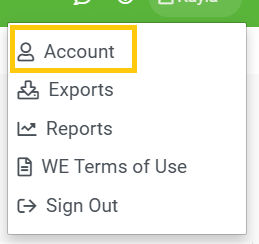
The Admin user can view and track your credit usage in the platform by clicking their name in the top right, select Account from the drop down, and navigate to Manage Account:

Manage Account
Manage Account is a multifaceted area of the platform that is only accessible to the Admin(s) of your account.
The "Reports" Tab will allow the Admin to view the overall account usage:

Manage Account will also allow you to allocate credits. This is critical because, by default, all users with access to the product will be able to use up those credits at their own discretion. If that risk concerns you, you can alleviate it. In the "Subscription" Tab you’ll see an "Allocate" option beside each tool. In checking that box, you are informing the system that you want to assign allotments of credits. You can then do so in the "Users" tab.

- Note: For details on allocation check out our Customizing Users Guide, or for step-by-step instructions, take a look at our Adding Users How-To.